Automations
To create an automation, go to App Settings → Automations → Create New Automation.
A setup window will open explaining that automations are applied during Mystery Box Order processing.
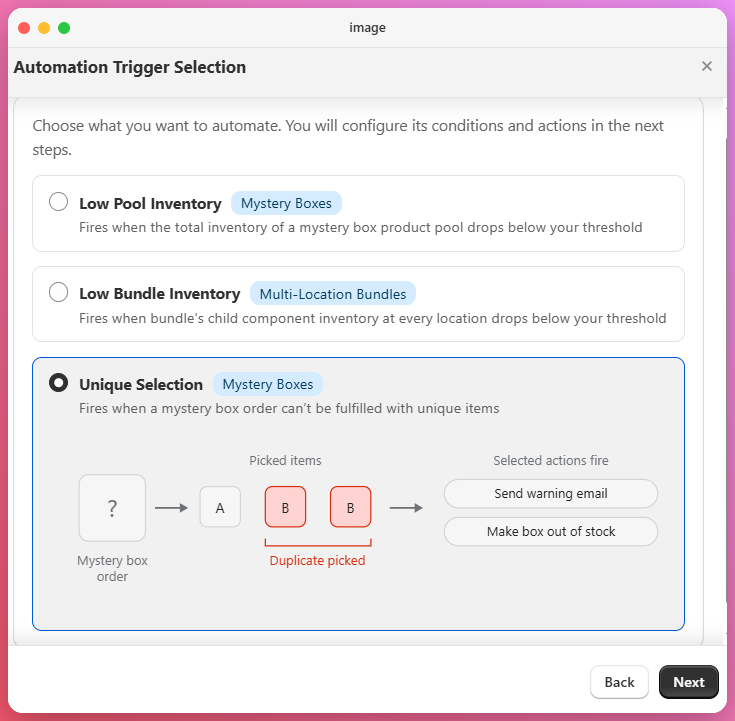
Click Create New Automation and you’ll see three available automation types:
-
Low Pool Inventory – Triggers actions when total inventory of a product group falls below a set threshold.
For detailed instructions, please refer to the help article.
-
Low Bundle Inventory - Fires when bundle's child component inventory at every location drops below your threshold
For detailed instructions, please refer to the help article.
- Unique Selection – Triggers actions if the app can’t select unique items for a mystery box.
The Unique Selection Automation helps ensure that your Mystery Boxes contain unique items.
When you enable this automation, the app will trigger specific actions if it’s unable to select unique items due to low inventory in the product group.
You can choose from two available actions:
- Send Warning Email – Receive an alert when the app can’t pick unique items.
- Make Parent Bundle Out of Stock – Automatically mark the Mystery Box as out of stock to prevent overselling.
After selecting your preferred automation and actions, click Save to finalize.